

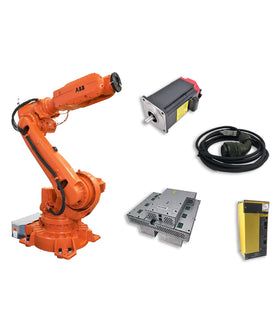

A Teach Pendant touch screen that stops responding can make robot operation and programming difficult. The display may still show the operating interface, but touching the screen produces no response. In other cases, only certain areas of the screen work, or the touch function becomes intermittent.
When this happens, the first assumption is often that the touch screen needs to be replaced.
However, a non-responsive touch screen does not always indicate a failed touch panel. The problem may also involve the internal touch interface circuit, cable connections, power supply, controller communication, or software configuration.
Before replacing the entire Teach Pendant, maintenance technicians should identify whether the failure is coming from the touch panel itself or another part of the system.
This guide explains the common causes of Teach Pendant touch screen failures, how to distinguish touch panel problems from controller-related issues, and what to inspect before ordering replacement parts.
Touch screen problems can appear in several different ways. Identifying the exact symptom is an important first step in troubleshooting.
| Symptom | Possible Cause |
|---|---|
| Entire touch screen does not respond | Failed touch panel, touch interface circuit, or connection problem |
| Display works, but touch input is unavailable | Touch panel or touch controller failure |
| Only certain areas respond to touch | Localized touch panel damage or sensor deterioration |
| Touch input is inaccurate or offset | Calibration issue or touch sensor failure |
| Touch response is intermittent | Loose connector, damaged cable, or unstable electrical connection |
| Screen responds without being touched | Touch panel damage, electrical noise, or grounding issue |
| Touch screen stops working after startup | Software initialization, communication, or hardware problem |
One important distinction is that the LCD display and touch panel perform different functions.
The LCD displays visual information, while the touch panel detects the operator's input. A working display does not necessarily mean the touch sensing system is functioning correctly.
Before troubleshooting, it helps to understand how the touch input system works.
A typical industrial Teach Pendant touch interface includes several components:
LCD Display: Shows robot status, menus, alarms, and programming information.
Touch Panel: Detects the operator's finger position and movement.
Touch Controller / Interface Circuit: Processes touch signals and converts them into input data.
Internal Connectors and Cables: Transfer signals between the touch panel, interface circuit, and main electronics.
Main Control Board: Handles the pendant's internal processing and communication with the robot controller.

Depending on the Teach Pendant model, the touch controller may be integrated into the touch panel assembly, mounted on a separate circuit board, or incorporated into another electronic module.
This means that replacing the touch panel is not always the correct repair.
| Component | Typical Failure | What to Check |
|---|---|---|
| Touch Panel | No touch response or localized dead areas | Touch response across the screen |
| Touch Controller | No input or unstable touch detection | Touch signal processing and interface circuit |
| Internal Connector | Intermittent or completely lost touch input | Connector seating and contact condition |
| Main Control Board | Multiple input or processing abnormalities | Board condition and related diagnostic information |
| External Cable | Intermittent pendant operation or communication | Cable condition and connector connections |
| Software / Configuration | Touch input unavailable or inaccurate after startup | Initialization, settings, and calibration |
The actual circuit arrangement varies between manufacturers and Teach Pendant generations. Always check the relevant model documentation before identifying a replacement component.
A systematic inspection can help narrow down the failure without unnecessarily replacing the complete pendant.
First, check whether the Teach Pendant display operates normally.
Look for the following:
Is the screen powered on?
Is the displayed interface clear and stable?
Are robot status information and menus visible?
Does the display show any startup or hardware-related errors?
Does the screen freeze, or is only the touch function unavailable?
What this tells you:
If the LCD displays information normally but does not respond to touch, the display power circuit is less likely to be the primary problem.
The investigation should focus on the touch panel, touch controller, internal connections, and software initialization.
If the entire display is blank or unstable, investigate the power supply and display-related circuits as well.
Test the touch response across different areas of the screen using the pendant's normal operating interface.
Observe whether:
No part of the screen responds.
Only one section fails to detect touch.
Touch input is registered at the wrong position.
The screen responds inconsistently.
Some touch operations work while others do not.
What this tells you:
If only certain areas are unresponsive, physical deterioration or damage to the touch panel becomes a stronger possibility.
If the entire screen is unresponsive while the display remains normal, the problem may involve the touch controller, its connection, or the touch panel itself.
If touch input is detected at incorrect positions, check calibration and sensor condition.
Do not assume that every no-response condition requires a new touch panel.
If the symptoms indicate a possible hardware problem, inspect the touch panel and its connections.
Common issues include:
Damaged or scratched touch surfaces.
Cracks or pressure damage.
Loose internal connectors.
Oxidized or contaminated connector contacts.
Damaged flexible flat cables (FFC).
Broken or weakened cable connections.
A loose connection between the touch panel and its interface circuit can interrupt touch signal transmission.
Before opening the Teach Pendant, follow the manufacturer's shutdown and electrical safety procedures. Internal inspection should be performed by qualified technicians.
What this tells you:
If reseating a properly secured connector restores normal operation, the original problem may have been a connection issue rather than a failed touch panel.
If the connectors and cables are in good condition but touch input remains unavailable, further testing of the touch panel and interface circuit is necessary.
The touch controller is responsible for processing signals generated by the touch panel.
If the touch panel is physically intact but no touch input reaches the main electronics, the interface circuit may be responsible.
Possible problems include:
Touch controller IC failure.
Damaged interface circuit components.
Faulty signal connections.
Unstable power to the touch interface.
PCB damage caused by electrical stress or environmental conditions.
Depending on the Teach Pendant design, the touch controller may be integrated into the touch panel assembly or located on a separate PCB.
What this tells you:
If the touch panel passes appropriate hardware checks but the system cannot detect touch signals, investigate the touch controller and associated circuit.
Where supported by the manufacturer, diagnostic tools or circuit-level measurements can help confirm whether the touch signal is being generated and processed correctly.

Not every touch screen problem is caused by damaged hardware.
Some Teach Pendant models may experience touch input problems related to:
Incorrect touch calibration.
Failed touch driver initialization.
Software or firmware abnormalities.
Configuration changes.
Startup or communication errors.
If the touch screen worked normally before a software update, system change, or maintenance operation, check whether the problem is related to that change.
Where the model supports touch calibration, follow the manufacturer's procedure.
Avoid performing a factory reset or firmware update as an initial troubleshooting step. These operations may affect system configuration and should only be performed when supported by the relevant service documentation.
What this tells you:
If the touch panel and interface circuit are functioning correctly but the system still cannot process touch input, software initialization or configuration may be involved.
Beyond individual component failures, several operating conditions can contribute to touch screen problems.
Teach Pendants are used frequently by robot operators and maintenance technicians.
Repeated finger pressure, scratches, impacts, and long-term wear can gradually affect the touch panel's sensing performance.
This is particularly relevant in production environments where the pendant is used throughout multiple shifts.
Industrial environments expose Teach Pendants to dust, oil, moisture, and other contaminants.
Depending on the touch panel construction and its sealing condition, contamination can affect touch detection or damage internal connections.
Regular cleaning using manufacturer-approved methods can help reduce contamination-related problems.
Excessive heat, temperature fluctuations, and environmental exposure can accelerate deterioration of electronic components and flexible connections.
If touch screen problems occur repeatedly in a particular production environment, operating conditions should also be considered during troubleshooting.
Electrical interference or grounding problems may cause unstable touch input, false detection, or intermittent operation in some systems.
If the problem appears together with other electronic abnormalities, inspect the relevant power and grounding conditions according to the manufacturer's service procedures.
Once the likely failure point has been identified, the next decision is whether to replace an individual component or the complete Teach Pendant.
Replacing the entire unit may be necessary in some situations, but it is not always the most economical solution.
| Failure Condition | Recommended Direction |
|---|---|
| Localized touch panel damage | Inspect and consider touch panel replacement |
| Touch panel has no response and fails hardware testing | Consider touch panel replacement |
| Touch controller circuit failure | Evaluate interface board repair or replacement |
| Loose or damaged internal connection | Repair or replace the affected connection |
| Software or calibration issue | Follow model-specific diagnostic and recovery procedures |
| Multiple internal components damaged | Evaluate complete Teach Pendant replacement |
For older or discontinued Teach Pendant models, finding a complete replacement unit can be difficult or expensive.
If the failure is limited to the touch panel, interface board, or another replaceable component, repairing the existing pendant may reduce replacement costs.
However, component-level repair is only appropriate when:
The failed component can be reliably identified.
A compatible replacement part is available.
The remaining electronic components are in acceptable condition.
The repair can be completed and tested according to the manufacturer's requirements.
The correct replacement part must match the specific Teach Pendant model and hardware revision. Similar-looking touch panels are not necessarily interchangeable.
Before purchasing a replacement touch panel or touch screen assembly, collect the necessary identification information.
The following details can help prevent ordering an incompatible component.
| Information | Why It Matters |
|---|---|
| Robot manufacturer | Identifies the equipment platform |
| Teach Pendant model | Helps determine the correct hardware configuration |
| Pendant part number | Identifies the specific assembly |
| Touch panel part number | Helps confirm the replacement component |
| Hardware revision | Identifies possible design differences |
| Screen dimensions | Helps distinguish physically different assemblies |
| Connector type and layout | Helps verify electrical compatibility |
| Photos of the original component | Helps suppliers confirm the correct part |
For example, two Teach Pendants from the same manufacturer may use different touch panel assemblies depending on their generation, display configuration, and hardware revision.
Do not select a replacement based only on screen size or external appearance.
When the original part number is unavailable, clear photos of the Teach Pendant nameplate, front display, internal component label, and connector layout can help with identification.
When troubleshooting confirms a touch panel or related component failure, replacing the affected part may restore normal operation without replacing the entire Teach Pendant.
Common replacement parts include:
Teach Pendant Touch Screen
Touch Panel Assembly
LCD Display Screen
Touch Interface Board
Internal Flexible Flat Cable
Teach Pendant Housing and Related Accessories
InRobots provides industrial robot spare parts sourcing for major robot brands, including ABB, FANUC, KUKA, and Yaskawa.
Whether you need a replacement touch panel, LCD display, or other Teach Pendant repair components, confirming the original part number and hardware configuration is the best starting point.
Explore our Teach Pendant & HMI Parts collection to find relevant replacement components.
If you cannot identify the correct touch panel or are unsure whether the problem is related to the panel or controller, contact our team with the original part number and component photos.
The LCD display and touch panel perform different functions. A working LCD does not confirm that the touch sensing system is operational. The problem may involve the touch panel, touch controller, internal connector, or software initialization.
Start by checking the touch response across the screen and inspecting the internal connections. Localized dead areas may indicate touch panel deterioration, while complete loss of touch input may involve the panel, controller, or signal connection. Further testing is needed to confirm the failed component.
In many designs, yes. Some Teach Pendants use replaceable touch panel assemblies or separate touch interface components. However, the repair method depends on the specific model and hardware design.
Possible causes include incorrect calibration, touch sensor deterioration, electrical interference, or problems with the touch interface circuit. Check the manufacturer's calibration procedure before replacing hardware.
No. The LCD produces the visual image, while the touch panel detects user input. Some assemblies combine these components, but they perform different functions and may have different replacement part numbers.
Provide the Teach Pendant model, original part number, hardware revision, and photos of the nameplate and existing component. If available, include the connector layout and screen dimensions to help verify compatibility.
A Teach Pendant touch screen that stops responding does not automatically mean the complete pendant needs replacement.
The failure could originate from the touch panel, touch controller, internal connectors, or software configuration.
A systematic troubleshooting process helps maintenance technicians identify the actual failure point before ordering replacement parts.
For industrial robot maintenance teams, confirming the correct component is just as important as identifying the fault. Matching the replacement touch panel to the original Teach Pendant model and hardware revision can help avoid compatibility problems and unnecessary downtime.
Need help identifying a Teach Pendant touch screen or replacement component?
Contact InRobots with your part number and photos. Our team can help identify suitable industrial robot spare parts for your repair requirements.
Key components commonly involved in issues and replacements.
No related parts found. Please check available components in our catalog.


{"one"=>"Select 2 or 3 items to compare", "other"=>"{{ count }} of 3 items selected"}
Leave a comment on this topic